
A holiday-hours announcement should prevent a wasted trip. The essential work is to agree on the exact dates and opening times, put them in the places a customer checks, verify what is public, and remove stale notices after the holiday. A social post helps people notice the change; it cannot replace the hours on your website or Google Business Profile.
This guide is for a planned, short holiday change. For a general audit of conflicting hours, services and booking routes, use the business-information guide. Here the extra job is a dated rollout and a reset after the exception ends.
Confirm one schedule before writing the announcement
Imagine Cedar Lane Books, a fictional shop normally open Monday through Saturday, 9 a.m.–6 p.m., and closed Sunday. The owner confirms this illustrative schedule for December 2026:
| Date | Normal hours | Confirmed holiday hours |
|---|---|---|
| Thursday 24 December | 9 a.m.–6 p.m. | 9 a.m.–2 p.m. |
| Friday 25 December | 9 a.m.–6 p.m. | Closed |
| Saturday 26 December | 9 a.m.–6 p.m. | 10 a.m.–4 p.m. |
| Monday 28 December | 9 a.m.–6 p.m. | Normal hours resume: 9 a.m.–6 p.m. |
These are fictional operating hours, not a real shop announcement. The owner checks staff coverage, the shop door sign, any order-collection cutoffs, and the contact route before publishing. If collection or online ordering uses different hours, state that separately; do not let a storefront-hours post imply a service the team cannot provide.
Set the hours where customers look first
Website: Put the dated exceptions on the main hours or visit page, where the regular hours already live. A short homepage notice can link to that page. Include the year and time zone or “local time” when the audience may be elsewhere. If a booking or collection page displays availability, check it against the same schedule. Do not leave “open Friday” in a footer while the holiday notice says closed.
Google Business Profile: For a brief change, use Special hours for each affected date rather than rewriting the regular weekly hours. Google's special-hours instructions say this is for holidays or other temporary changes and that the profile must be set to “Open with main hours” for special hours to appear. Mark 25 December closed and enter the shorter hours for 24 and 26 December. Google says special hours show only for their designated dates; still inspect the public profile after saving rather than assuming the edit is already visible.
Social: Use one dated announcement to make the change easy to spot, and point people to the maintained hours page. A pinned or scheduled post is a reminder, not the source of truth. Google's Business Profile post guidance also permits business updates, but a post is separate from structured Special hours. If you make a Google post, make its dates and wording agree with the profile's Special hours and website.
Work backwards from the first changed day
A small schedule keeps the announcement from going out before the business has made the underlying updates:
| When in this example | Owner action | What to verify |
|---|---|---|
| Mon 14 Dec | Confirm the three exceptions with the person responsible for staffing and collection. | Dates, local times, branch, and any separate service cutoff. |
| Tue 15 Dec | Update the website hours page and any booking or collection details that mention those dates. | Read the page on a phone without using the editor view. |
| Wed 16 Dec | Save 24–26 Dec as Google Special hours. | Open the public Business Profile and check each date when Google displays the update. |
| Mon 21 Dec, 10 a.m. | Publish the social announcement below after the website and Google checks. | Image text, caption, link and each displayed date agree. |
| Wed 23 Dec | Recheck the website, public Google hours, post and shop-door notice. | If anything changed, update every affected surface before the early close. |
| Mon 28 Dec | Confirm normal hours are visible again; remove or unpin expired website and social notices. | The regular schedule and customer contact route work. |
Google's dated Special hours are not a permanent change to the main weekly schedule, so this reset does not mean deleting correct past special-hour entries to “restore” regular hours. It means checking what customers actually see on 28 December and retiring time-limited notices that have become stale. If a schedule changes during the week, correct the hours fields and website first, then edit or replace the announcement.
One complete illustrative post
This is ready-to-adapt copy for the fictional schedule, not a live post or an existing image. The shop would supply and approve the visual and replace every date or route that differs from reality.
- Channel and time: Facebook, Monday 21 December 2026 at 10 a.m. local.
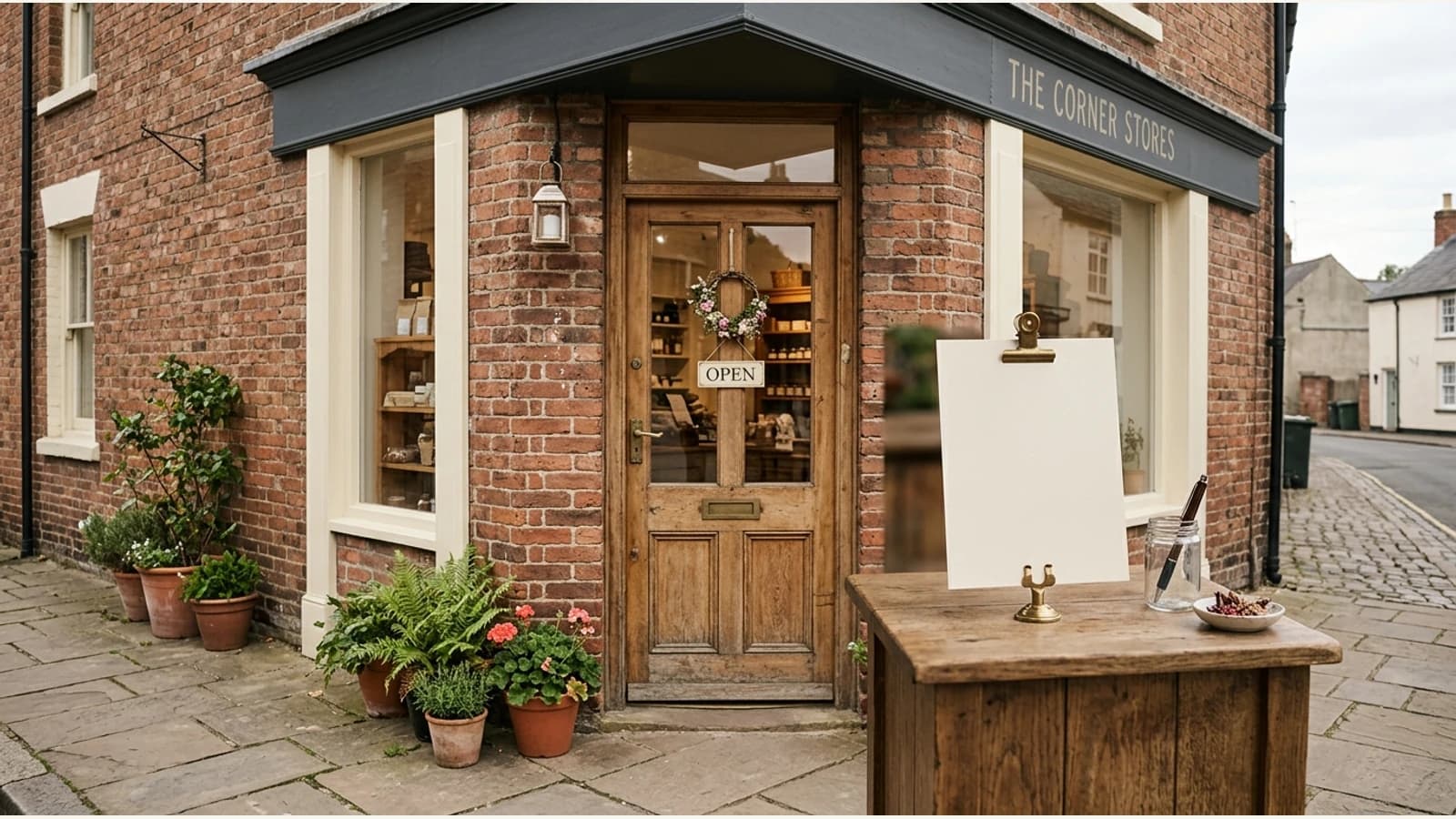
- Image brief: a real, shop-owned photo of Cedar Lane Books' entrance with no outdated hours sign visible. Leave enough clear space for a readable four-line hours panel; if the photograph is too busy, use a plain brand-colour card instead.
- On-image text: “Holiday hours · 2026” above three legible lines: “24 Dec · 9 a.m.–2 p.m.”, “25 Dec · Closed”, and “26 Dec · 10 a.m.–4 p.m.”
- Caption: “Planning a visit to Cedar Lane Books? Our 2026 holiday hours are Thursday 24 December, 9 a.m.–2 p.m.; Friday 25 December, closed; and Saturday 26 December, 10 a.m.–4 p.m. Our usual 9 a.m.–6 p.m. hours resume Monday 28 December. Please check the current hours page on our website before travelling, especially if you are collecting an order.”
- Hashtags:
#CedarLaneBooks #HolidayHours, only if they match the real shop and channel. - Customer action: open the verified website hours page through the post's working link.
If the shop later closes at noon on the 24th, changing only the Facebook caption would leave the website, Google profile and image panel wrong. Assign one person to make and recheck the entire correction.
Mazuly's Ask Mazuly can help prepare wording from the schedule the owner supplies, and Brand Brain can provide saved business context. The owner still sets and verifies the website, Google Special hours and social post. Do not assume Mazuly automatically synchronises holiday hours or knows whether an order is ready for collection.